How to Search Google Tasks
Arturo4 min read
The short answer
Google Tasks does not include a built-in search feature. The fastest way to search your Google Tasks is to open the full-window web app at tasks.google.com, switch to the All tasks view, and use your browser's find shortcut (Cmd+F on Mac, Ctrl+F on Windows) to jump to any task across every list. Searching completed tasks takes one extra step, which we cover below.
Option 1 · The workaround
Search Google Tasks with browser find
Google Tasks does not include a search bar of its own, but the full-window web app at tasks.google.com makes every task searchable through your browser's built-in find shortcut. Two adjacent Google tools, Gmail and Google Calendar, can also surface specific kinds of tasks when you know where to look.
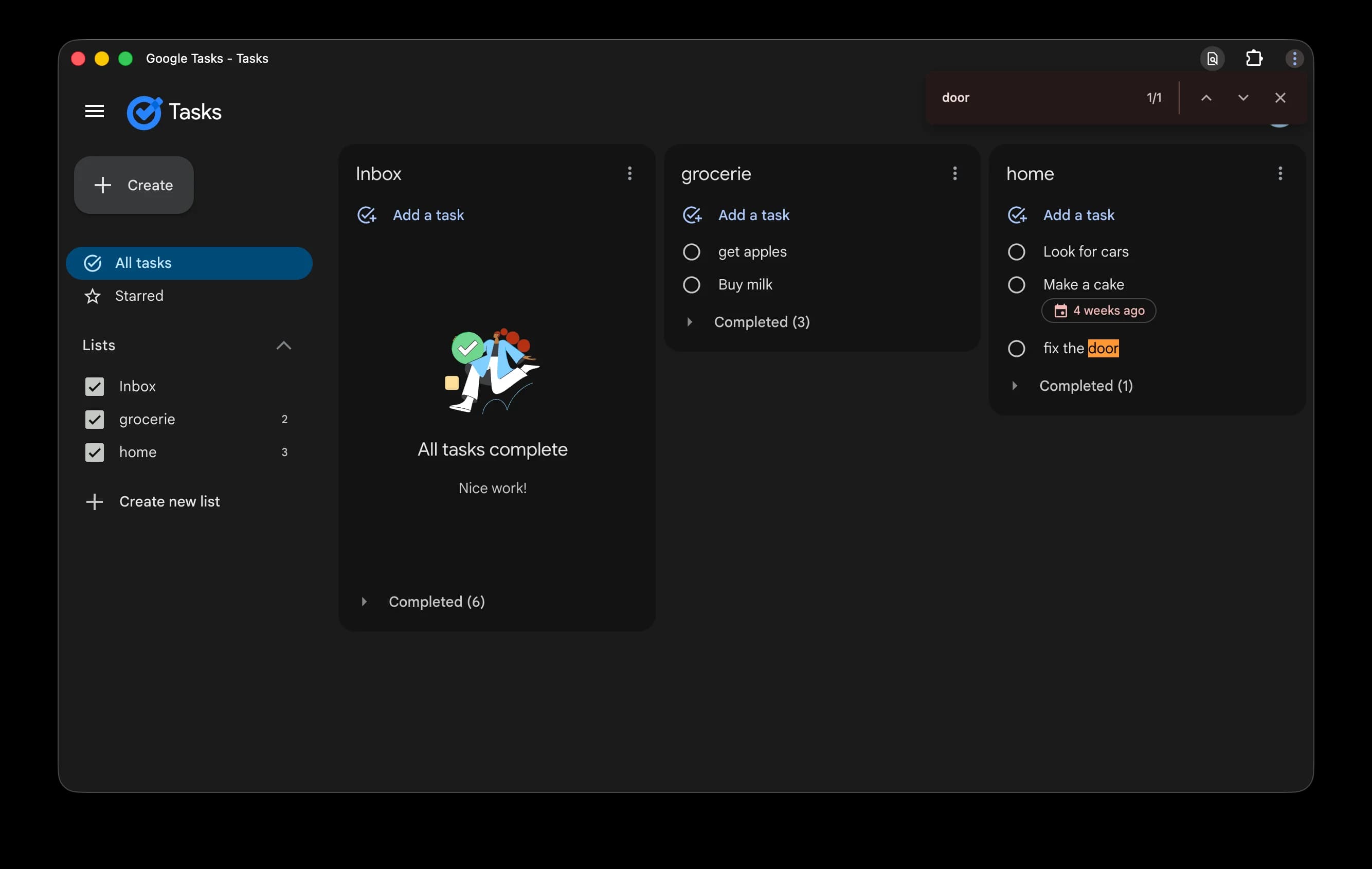
- 1Open Chrome, Edge, Safari, or Firefox and go to https://tasks.google.com
- 2Sign in with your Google account if you are not already signed in
- 3In the left sidebar, click "All tasks" so tasks from every list are rendered on one page
- 4Press Cmd+F on macOS or Ctrl+F on Windows and Linux to open the browser's find bar
- 5Type any part of the task title or description. The browser highlights every match on the page and you can step through them with the arrows
One caveat to know: browser find only matches text that is currently rendered on the page. Completed tasks are collapsed under a "Completed" dropdown at the bottom of each list by default, so if the task you are looking for is already done, expand the Completed section in every list first. Once the completed task titles are rendered into the page, Cmd+F will pick them up.
Also search Gmail for tasks you created from an email
Tasks created from Gmail using the "Add to tasks" button keep a reference to the original email. Gmail search does not match the task itself, but the source email is fully searchable by sender, subject, or snippet. Find the email, open it, and the linked task sits one click away in the Tasks side panel. This works well for tasks that started as follow-ups from a conversation.
How to find tasks in Google Calendar
Google Calendar shows every task that has a due date on the day it is due. Open calendar.google.com, make sure the Tasks box is checked under My calendars in the left panel, and navigate to the day you remember — the task appears as a checkbox entry. To see everything still open at once, click Pending tasks at the top of the calendar: it lists your uncompleted tasks from the last 365 days. Two limits apply. Tasks without a due date never appear on Calendar, and Calendar's search bar is documented for events rather than tasks — many people report that tasks do not show up in its results — so browsing by date or through Pending tasks is the dependable route.
Option 2 · Real search
Use full-text search in KiteTasks
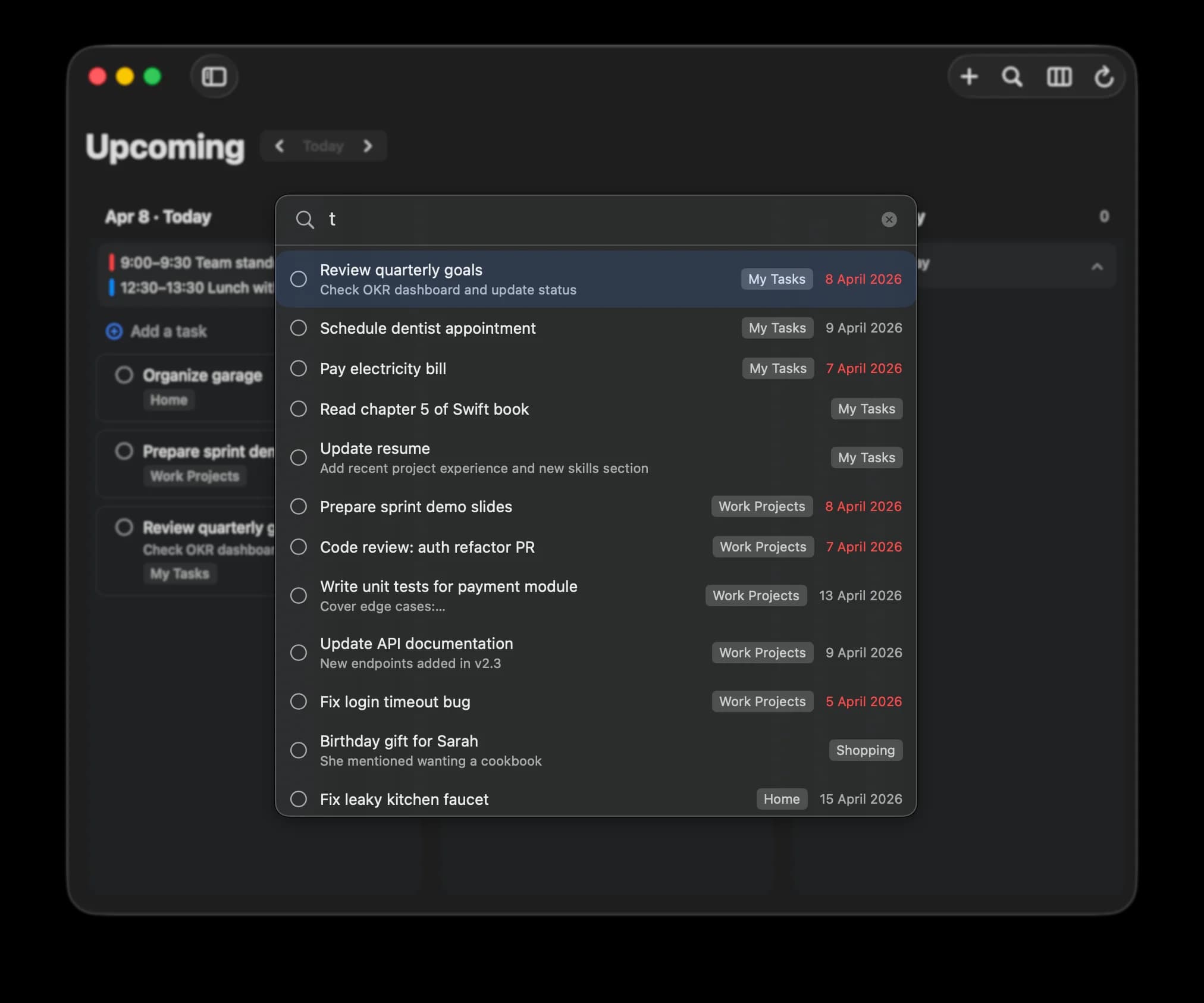
KiteTasks includes a dedicated search command built into the app. It runs against the whole local sync of your Google Tasks data, so it covers every list and every completed task with no need to expand anything first.
- 1Open KiteTasks on your Mac
- 2Press Cmd+F from anywhere in the app to open the search field
- 3Start typing. Matches appear instantly, grouped by list, with due dates and list labels
- 4Use the arrow keys to step through results and Enter to jump straight to a task
Because the search runs against the full sync, it includes completed tasks automatically and also looks inside task notes and subtasks, not just titles. If a name or phrase appears anywhere in a task's details, it will surface in the results.
Frequently asked
- Does Google Tasks have a built-in search?
- No. Google Tasks does not currently include a search bar or command. The standard workaround is to open tasks.google.com, switch to the All tasks view so every list is rendered on one page, and then use your browser's find shortcut (Cmd+F on Mac, Ctrl+F on Windows and Linux) to jump to a task.
- Can I search completed tasks in Google Tasks?
- Not directly. Completed tasks are collapsed under a Completed dropdown at the bottom of each list by default. To search them with browser find, expand the Completed section in every list first so the task titles get rendered into the page. Once rendered, Cmd+F or Ctrl+F will match them like any other task.
- Can I search across all my Google Tasks lists at once?
- Yes, on tasks.google.com. Click All tasks in the left sidebar to render every list on a single page, then use Cmd+F or Ctrl+F. The Tasks side panel inside Gmail or Google Calendar only shows one list at a time, so browser find there only searches whatever list is currently selected.
- Can I find Google Tasks by searching Gmail or Calendar?
- Partially. Tasks created from a Gmail email stay linked to that email, so searching Gmail for the source email is a reliable way to find those tasks again. Google Calendar is better for browsing than searching: tasks with a due date appear on the day they are due, and the Pending tasks button lists uncompleted tasks from the last 365 days, but Calendar's search is documented for events, not tasks. Undated tasks that were not created from an email are only findable through tasks.google.com.