How to Add Google Tasks to Your Desktop
Arturo7 min read
The short answer
Google does not make an official Google Tasks desktop app, but you can still add Google Tasks to your desktop. The two realistic ways are: install tasks.google.com as a Progressive Web App so it runs in its own window on Windows, macOS, Linux, or ChromeOS, or use a dedicated native app like KiteTasks on Mac. Each option works differently and comes with different limits.
Option 1 · Free & official
Install tasks.google.com as a Progressive Web App
Google has a standalone web app for Google Tasks at tasks.google.com. You can install it as a Progressive Web App on Chrome or Edge so it runs in its own dedicated window on your desktop, separate from your browser tabs.
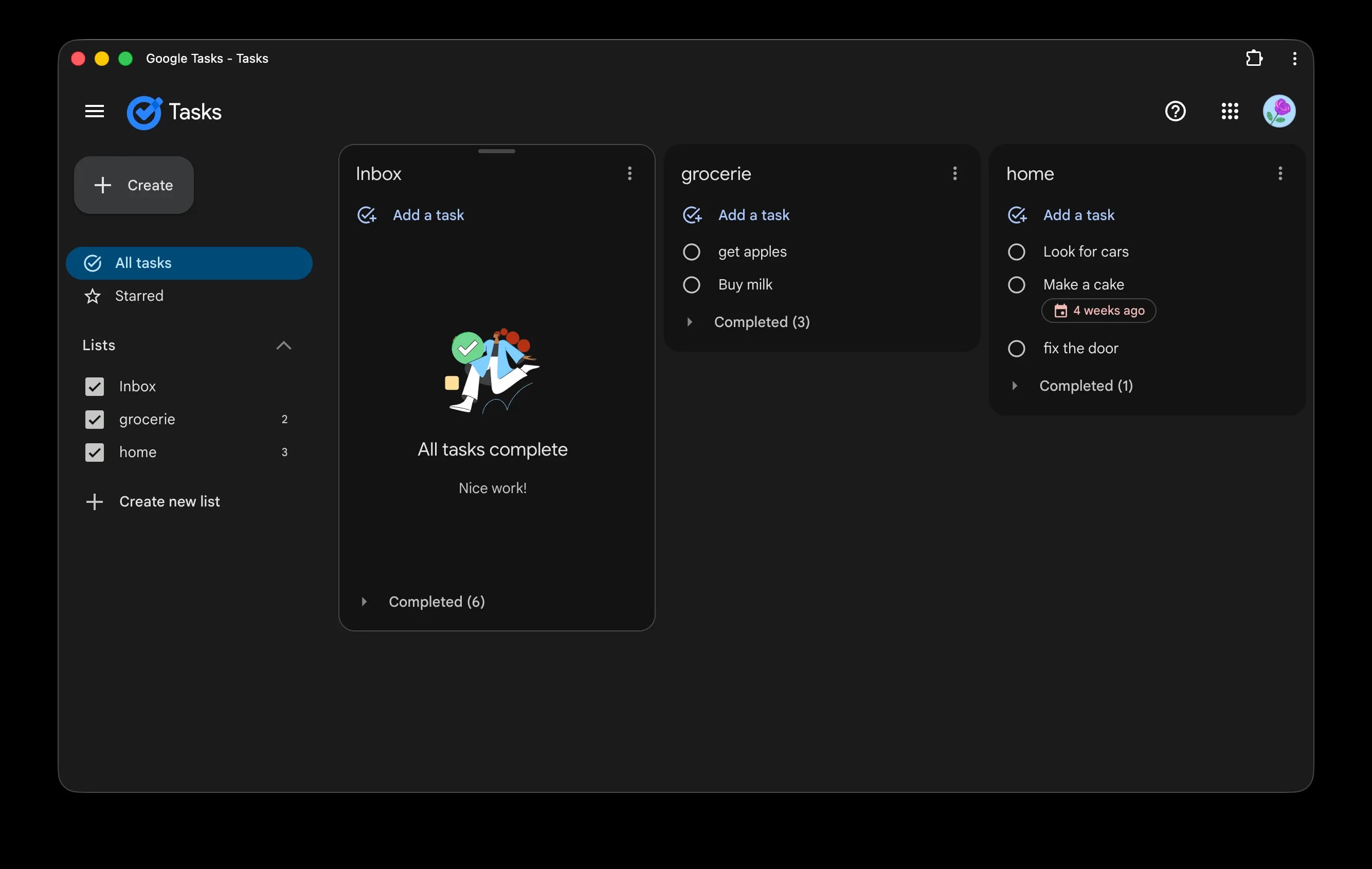
- 1Open Chrome or Edge and go to https://tasks.google.com
- 2Sign in with your Google account if you are not already signed in
- 3Click the install icon on the right side of the address bar. On Chrome it looks like a small monitor with a down arrow. On Edge it shows an "App available" badge
- 4Confirm the install. A dedicated window opens and a launcher shortcut is added to your Applications folder on macOS or Start menu on Windows
- 5Pin the window to your Dock or Taskbar for quick access
That is the whole install: under a minute, free, and it works the same on macOS, Windows, Linux, and ChromeOS. It is also the closest thing Google ships to a desktop app, so before committing your task list to it, it is worth understanding exactly what the installed app can and cannot do.
What the PWA actually gets you
A dedicated window is more useful than it sounds. The installed app gets its own icon in the Dock or Taskbar and its own entry in the app switcher, so your task list is no longer buried among browser tabs where a stray Cmd+W can close it. Google's built-in keyboard shortcuts work inside the window — press Cmd+/ on Mac or Ctrl+/ on Windows to see the full overlay — and because it is the same web app underneath, every change syncs immediately to your phone and to the Tasks side panel in Gmail. For a single Google account and a modest number of lists, this is a perfectly serviceable setup that costs nothing.
Prefer Safari? Use Add to Dock
Chrome and Edge are the only desktop browsers with a PWA install button — Firefox does not support installing web apps on desktop, and Safari uses a different mechanism. On macOS Sonoma and later, open tasks.google.com in Safari and choose File → Add to Dock: Safari wraps the site in a standalone web app with its own Dock icon and window, and the result behaves almost identically to the Chrome install. Whichever browser builds it, the wrapper adds no features. What you get is exactly tasks.google.com in a frame.
Where the PWA runs out of road
Every limit of the Google Tasks web app comes along for the ride, because a PWA is the website. There is no search — the only workaround is your browser's find command on the All tasks view, which misses completed tasks collapsed under their dropdowns. There is no Today view that gathers due tasks from every list onto one screen; you check list by list. Due dates must be set through the date picker, since typing "tomorrow 3pm" just becomes part of the task title. Notifications depend on the browser engine running in the background with notification permission granted, so reminders are easy to miss after a restart. And the app is signed into one Google account at a time — keeping work and personal separate means separate browser profiles, each with its own installed copy.
The other free option: the Tasks side panel
If most of your tasks start life as emails, you may not need a separate window at all. Gmail and Google Calendar include a Tasks side panel on the right edge of the screen — click the Tasks icon to open it, and use "Add to tasks" on any email to turn it into a task that stays linked to the original message. The panel shows one list at a time in a narrow column, so it works better as a companion while you process email than as your main task view. It also shares every limit from the previous section, since it is the same web app in a smaller frame.
Option 2 · Native Mac app
Use a native Mac app with KiteTasks
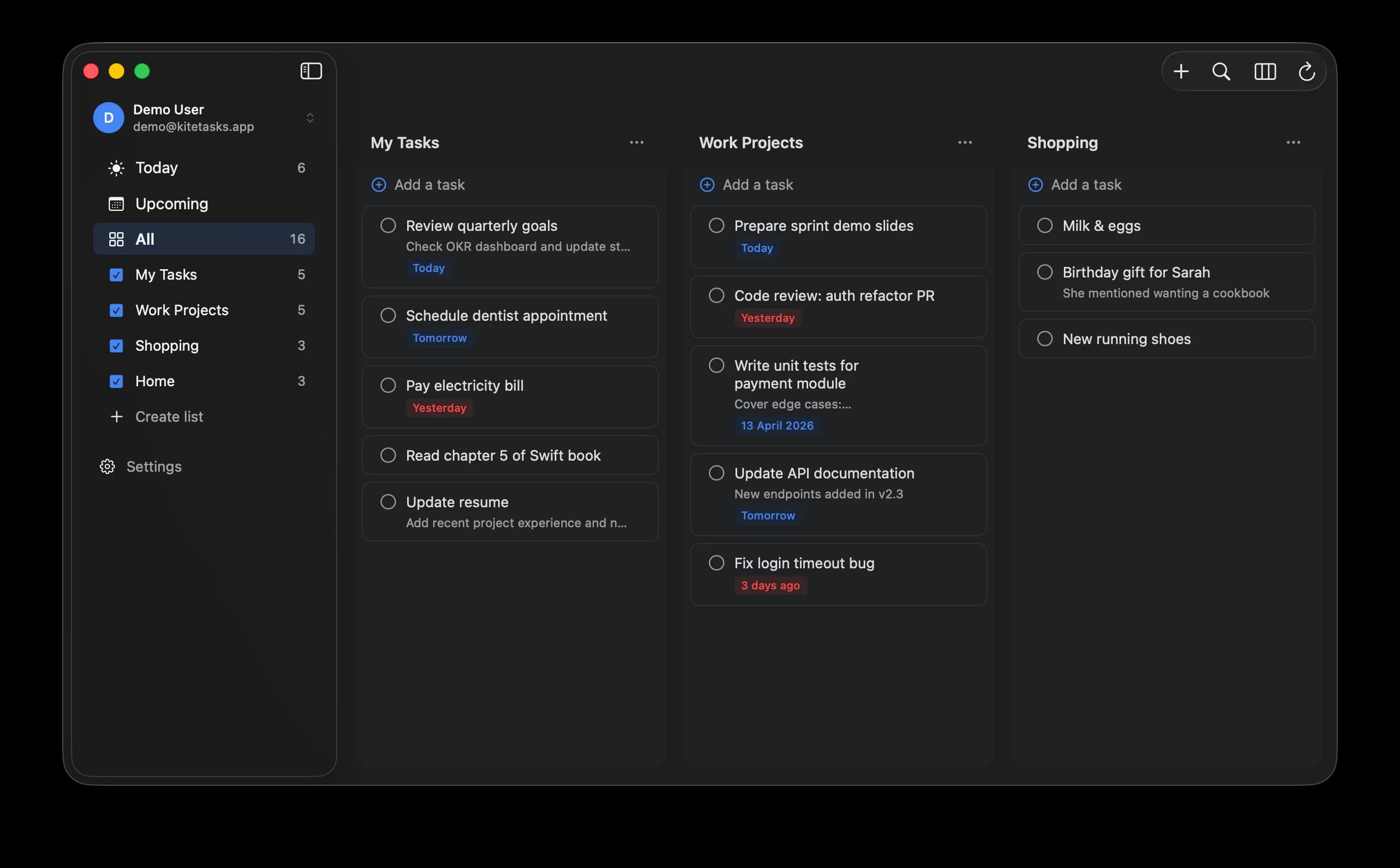
KiteTasks is a native macOS app that connects to your Google Tasks data over the official Google Tasks API using OAuth 2.0. It is not an Electron wrapper and not a web view. It runs as a real Mac app, launches instantly, and plays nicely with macOS features like Notification Center, the menu bar, and system-wide keyboard shortcuts.
- 1Download KiteTasks from the Mac App Store
- 2Open the app and sign in with your Google account using OAuth 2.0, the same authentication flow Google's own apps use
- 3Your existing lists and tasks sync automatically in both directions
Setup ends there — there is no separate account to create, and the app talks directly to Google's servers with nothing in between. What changes day to day is everything the web app cannot do, which the sections below walk through.
Views the web app does not have: Today, Upcoming, and boards
Because the app keeps a full local sync of your account, it can build views the website cannot. The Today view gathers every task due today across all of your lists onto one screen, so the morning check is one glance instead of a tour through each list. The Upcoming view lays out the days ahead and overlays your Google Calendar events next to your scheduled tasks, putting meetings and deadlines on the same timeline. And any list can render as a plain list, a Kanban-style board, or a compact view — the same data, switched freely depending on how you like to plan.
Real search, including notes and completed tasks
Press Cmd+F and type. The search runs against the full local sync, so it covers every list at once and looks inside task notes and subtasks as well as titles — and completed tasks are included automatically, with no expanding of Completed sections first. Results appear as you type, grouped by list, and Enter jumps straight to the task. This is the single biggest quality-of-life difference from the PWA, where finding an old task means scrolling or browser-find workarounds.
Quick Capture from anywhere, in plain English
The global Quick Capture hotkey — Option+Space by default, remappable in Settings — works from inside any app on your Mac. Press it and a small capture window appears over whatever you are doing; type "call mom tomorrow 3pm" and KiteTasks parses the date and time out of the sentence, no date picker involved, then puts you back where you were. The menu bar icon covers the unhurried version of the same idea: today's tasks and calendar events one click away, with a quick-add field, without opening the main window at all.
How it connects, and what it costs
KiteTasks talks to Google over the official Google Tasks API using OAuth 2.0, the same authentication flow Google's own apps use, so you never type your Google password into the app itself. Your tasks move directly between your Mac and your Google account with no third-party servers in the middle, and the app ships with zero telemetry. Reminders arrive through macOS Notification Center like any other Mac app, multiple Google accounts sit side by side with one-click switching, and the app is a one-time purchase with no subscription.
Frequently asked
- Is there an official Google Tasks desktop app?
- No. Google has not released an official Google Tasks desktop app for any operating system. The closest official option is tasks.google.com, which you can install as a Progressive Web App so it runs in its own window. KiteTasks is a third-party native Mac app that connects to your Google Tasks data using the official Google Tasks API and OAuth 2.0.
- Can I use Google Tasks on Windows?
- Yes, through the tasks.google.com PWA. Install it on Chrome or Edge and it runs as a standalone desktop app on Windows, with a shortcut added to your Start menu. There is no official native Google Tasks app for Windows. KiteTasks is Mac-only today.
- Which browsers can install the Google Tasks PWA?
- Chrome and Edge, on macOS, Windows, Linux, and ChromeOS — both show an install control in the address bar when you visit tasks.google.com. Safari on macOS Sonoma or later reaches the same result a different way, through File → Add to Dock. Firefox does not support installing web apps on desktop, so there you are limited to a pinned tab.
- Does the Google Tasks PWA work offline?
- Partially. The PWA caches your most recent tasks, but edits made offline may not sync reliably once you reconnect. Native apps that talk directly to the Google Tasks API tend to handle offline edits and sync conflicts more predictably than a browser-backed PWA.
- Do Google Tasks notifications work on desktop?
- With the PWA, only partially: notifications depend on the browser engine running in the background and having notification permission, which makes reminders easy to miss after a restart. A native app registers directly with the operating system — KiteTasks delivers due-date reminders through macOS Notification Center, so they behave like reminders from any other Mac app.