How to Add a Google Tasks Widget on iPhone
Arturo6 min read
The short answer
Google's Tasks app for iPhone includes a Home Screen widget: touch and hold the Home Screen, tap Add, choose Tasks, pick a size, and tap Add Widget. Google's documentation covers adding, resizing and removing it, and nothing more, so do not expect to complete or add a task from the widget itself. For widgets that do more, KiteTasks for iPhone, now in open beta, adds Today, List and Calendar widgets where you check tasks off in place, plus a Quick Add button in Control Center.
Option 1 · Free & official
Add Google's own Tasks widget to your Home Screen
Unlike on a Mac, where Google ships no widget at all, Google does ship one on iPhone. It comes with the Google Tasks app from the App Store, which requires iOS 17 or later. These are Google's own steps.
- 1Install the Google Tasks app from the App Store and open it once. Google notes that after a fresh install the widget may not appear in the list until you have opened the app
- 2Touch and hold an empty area of the Home Screen until the apps jiggle, then tap Add (or Edit, then Add Widget) at the top left
- 3In the list of widgets, tap Tasks
- 4Swipe left or right to choose the size you want
- 5Tap Add Widget, then tap Done at the top right
That is the whole install. To move the widget, drag it somewhere else; to remove it, touch and hold it and tap Remove Widget. The same widget also fits in Today View, the page to the left of your first Home Screen: swipe right to reach it, scroll to the bottom, tap Edit, and add Tasks there. Today View is one swipe from the Lock Screen, so if you would rather not show your tasks while the phone is locked, Google points to Settings, Face ID & Passcode, and turning off Today View and Search. That is where Google's help page stops. It describes adding, resizing, moving and removing the widget, and documents no way to complete a task or add one from the widget itself.
Widget not showing tasks or not updating?
Two things cover most cases. If you installed the Tasks app moments ago, open it once and the widget will appear and fill. If the widget is there but stale, open the app so it can sync. Then check that the account signed in to the app is the one whose tasks you expect to see. The most common complaint in Google's own community forum is about a different widget entirely: the Google Calendar widget on iPhone, which people expect to show tasks and which stopped doing so. Tasks with a due date show up inside the Google Calendar app, but the Tasks widget is the one that lists them on the Home Screen.
Option 2 · Native iPhone widgets · open beta
Widgets that check tasks off in place, with KiteTasks for iPhone
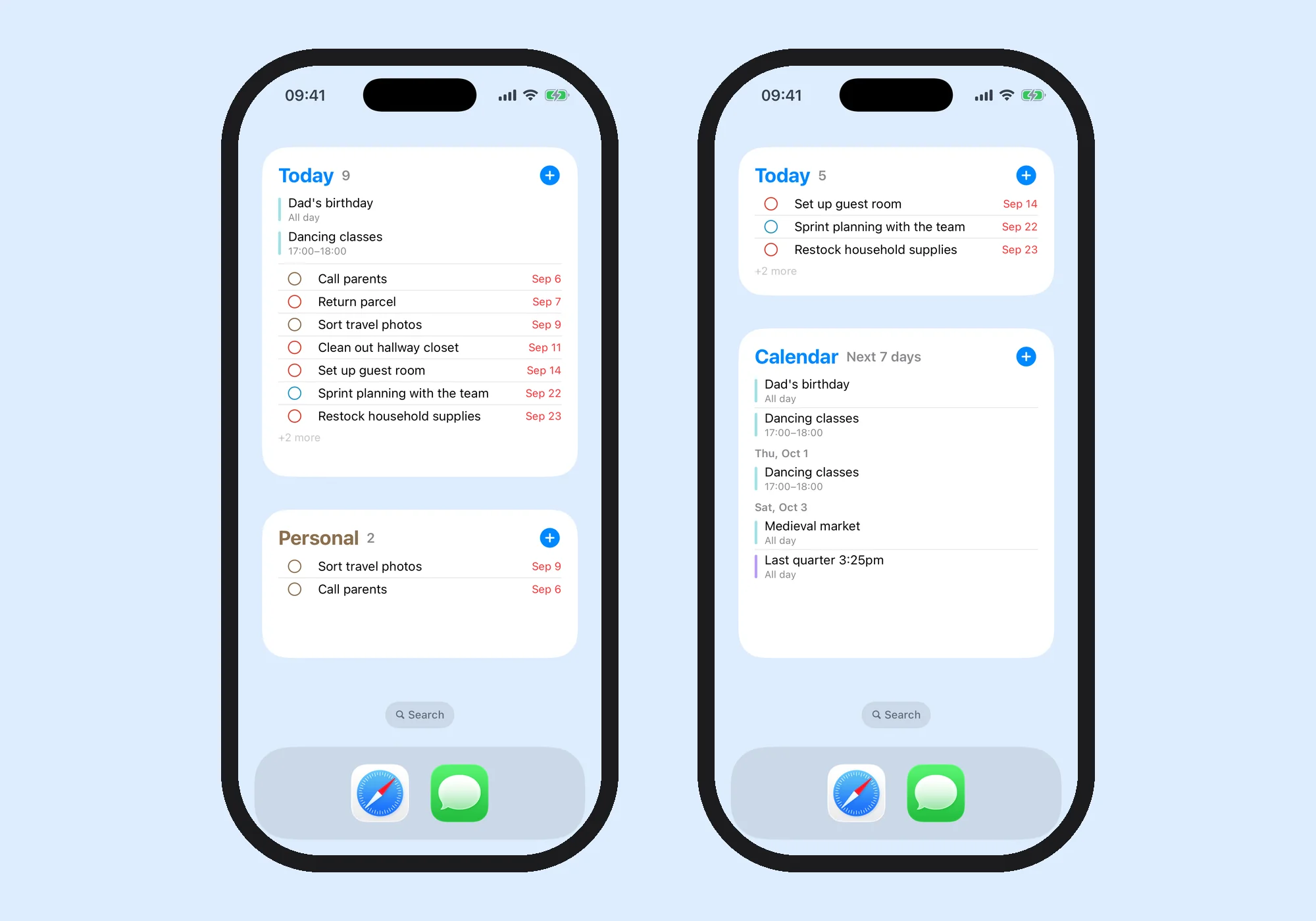
KiteTasks for iPhone is a native app for Google Tasks, currently in open beta through TestFlight, and it requires iOS 26. It ships three Home Screen widgets, Today, List and Calendar, and a Quick Add button for Control Center. Since iOS 17, widgets have been able to run actions without opening the app. KiteTasks uses that: tap the circle next to a task in the Today or List widget and it is completed right there, then synced to Google Tasks.
- 1Install TestFlight from the App Store, then open the KiteTasks beta invite and tap Install
- 2Open KiteTasks and sign in with your Google account. Your lists sync in a moment
- 3Touch and hold the Home Screen, tap Edit, then Add Widget, and search for KiteTasks
- 4Choose Today, List or Calendar, swipe to the size you want, and tap Add Widget
- 5Touch and hold the widget and tap Edit Widget to pick the Google account it follows, and for the List widget, which list it shows and how it sorts
| Widget | Sizes | What it shows | Options |
|---|---|---|---|
| Today | Small, medium, large | Today's tasks from every list, with a + button that opens Quick Add. Medium and large can show your next calendar events above the tasks | Account · Show calendar events · Show overdue tasks |
| List | Medium, large | One task list with its color, open count and nested subtasks | Account · List · Sort by My Order or Due Date |
| Calendar | Medium, large | Your events for today or the next 7 days, from Google Calendar and Apple Calendar | Account · Today or Next 7 days |
| Quick Add control | Control Center button | Opens Quick Add so you can type a task with a natural-language date from anywhere | — |
Tapping a task title opens it in KiteTasks, tapping an event opens it in its calendar, and the + button opens Quick Add. The widgets draw from a snapshot the app writes when it syncs, so open the app now and then to keep them fresh. Completions you make in a widget are sent to Google through the app. The widgets described here are in the current beta build, and this guide will be updated when KiteTasks for iPhone reaches the App Store.
Frequently asked
- Is there a Google Tasks widget for iPhone?
- Yes. The Google Tasks app for iPhone and iPad includes a Home Screen widget, added from the Home Screen's widget list like any other. It also works in Today View, the page to the left of your first Home Screen.
- Can I check off a task from the Google Tasks widget on iPhone?
- Google's documentation for the widget covers adding, resizing, moving and removing it, and describes no way to complete a task from the widget. iPhone widgets have been able to run actions in place since iOS 17, and third-party apps use that. In the KiteTasks Today and List widgets, tapping a task's circle completes it without opening the app.
- Why is my Google Tasks widget not showing my tasks?
- Open the Google Tasks app once. Google notes that after installing the app the widget may not appear until the app has been opened, and opening it also lets it sync. Then check the account signed in to the app. If you are looking at the Google Calendar widget, that is a different widget: the Tasks widget is the one that lists your tasks on the Home Screen.
- Does Google Tasks have a Lock Screen widget?
- Google's help page covers the Home Screen and Today View widget and does not mention a Lock Screen widget. KiteTasks has no Lock Screen widget yet. It puts a Quick Add button in Control Center instead, which is reachable from the Lock Screen with one swipe, and Today View with Google's widget is one swipe right from the Lock Screen as well.
- Can I add a task from a widget on iPhone?
- Not with anything Google documents for its widget. Every KiteTasks widget has a + button that opens Quick Add, and the Quick Add control does the same from Control Center. Type the task in plain English, including a date and time, and it lands in the list you choose.
- Can a widget show one specific list, or one Google account?
- With KiteTasks, yes. The List widget pins one list of your choice, sorted in your own order or by due date. Every widget follows the Google account you pick when you edit it, so two widgets can show two accounts side by side.
- Is KiteTasks for iPhone free?
- It is free during the open beta. You install it through Apple's TestFlight app, and it requires iOS 26. The Mac app is a one-time purchase on the Mac App Store.