How to Get a Google Tasks Widget on Your Mac
Arturo6 min read
The short answer
There is no official Google Tasks widget for macOS. The Google Tasks widget exists only inside Google's Android and iPhone apps, and Google ships no Mac app, so nothing from Google appears in the macOS widget gallery. The closest official stand-in is a small tasks.google.com window kept in a corner of your screen. For a real widget, a native Mac app like KiteTasks adds Today, List, Calendar and Month widgets to your desktop and Notification Center, and lets you check tasks off without opening the app.
Option 1 · Free & official
What Google offers on a Mac: no widget
Google's own widget lives inside the Google Tasks app for Android and iPhone. There is no Google Tasks app for macOS, and no Google Calendar app either, so if you open the macOS widget gallery and search for "tasks", nothing from Google shows up.
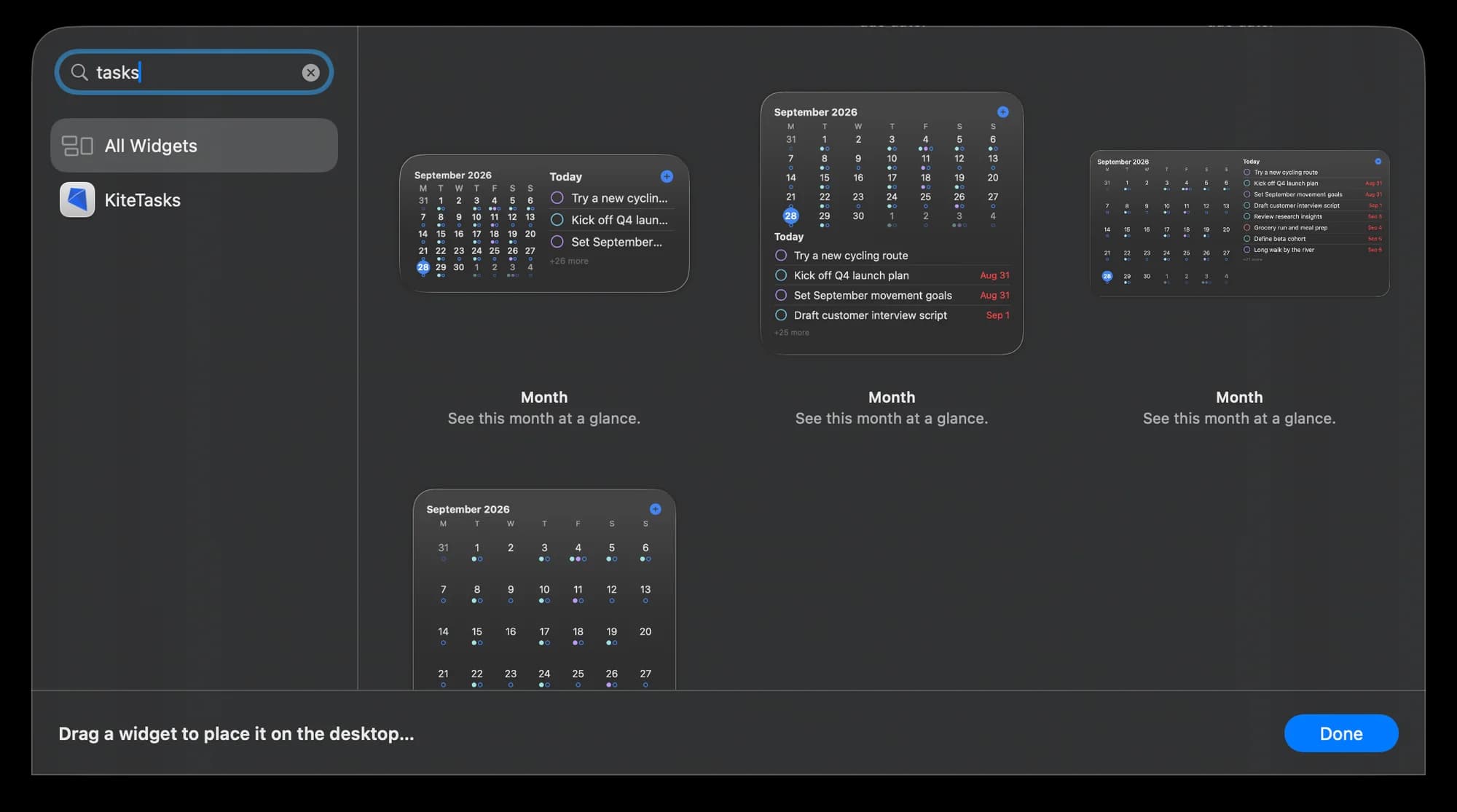
The closest official stand-in is tasks.google.com added to your Dock as a web app, resized to a narrow column and parked in a corner of the screen. It works for one account, but it hides behind whatever you are working in, it cannot sit on the desktop or in Notification Center, and it shows nothing unless the web app is running. The Mac guide below walks through that setup and the Tasks side panel in Gmail and Google Calendar.
Why the built-in macOS widgets cannot show Google Tasks
macOS ships Calendar and Reminders widgets, and it is tempting to point one of them at your Google account. It does not work. Adding a Google account in System Settings syncs Mail, Calendar, Contacts and Notes, but Google Tasks is not part of that integration: tasks are not calendar events, so they never reach the macOS Calendar widget, and Apple Reminders has no bridge to Google Tasks in either direction. Any Google Tasks widget on a Mac has to come from a third-party app that talks to the Google Tasks API itself.
Option 2 · Native Mac widgets
Add native Google Tasks widgets with KiteTasks
KiteTasks is a native macOS app for Google Tasks, and it ships five WidgetKit widgets: Today, List, Calendar, Month and Month grid. They appear in the same widget gallery as Apple's own widgets, so you can place them on the desktop, in Notification Center, or both. Each widget follows the Google account you choose, and the Today and List widgets let you check tasks off right where they are.
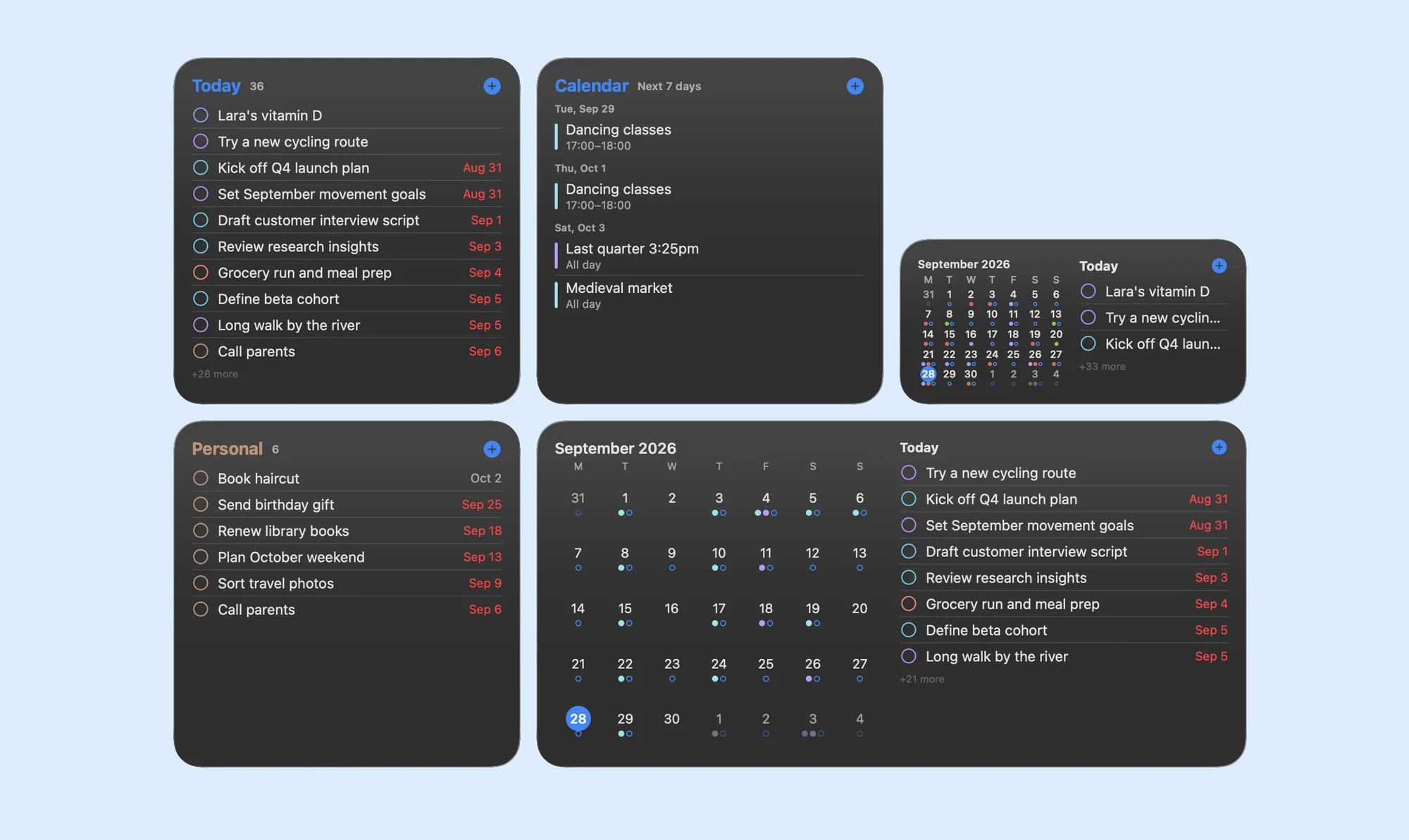
- 1Download KiteTasks from the Mac App Store and sign in with your Google account. Leave it open for a moment so your lists sync
- 2Right-click the desktop and choose Edit Widgets. Or click the date and time in the menu bar to open Notification Center and click Edit Widgets at the bottom
- 3Type "KiteTasks" or "tasks" into the gallery's search box and choose the Today, List, Calendar, Month or Month grid widget in the size you want
- 4Drag the widget onto the desktop, or click it to add it to Notification Center, then click Done
- 5Right-click the widget and choose Edit to pick the Google account it follows and the options for that widget, such as the list it shows or whether overdue tasks are included
| Widget | Sizes | What it shows | Options |
|---|---|---|---|
| Today | Medium, large | Today's tasks across every list, with a + button that opens Quick Add | Account · Show calendar events · Show overdue tasks |
| List | Medium, large | One task list with its color, open-task count and nested subtasks | Account · List · Sort by My Order or Due Date |
| Calendar | Medium, large | Your events for today or the next 7 days, from Google Calendar and Apple Calendar | Account · Today or Next 7 days |
| Month | Medium, large, extra large | The month grid with events and due tasks marked, plus today's agenda beside it | Account · Today panel: events, tasks or both · Show overdue tasks |
| Month grid | Large | The month grid on its own, with events and tasks marked | Account |
Tick a task in the Today or List widget and it is done, no app window needed. The + button opens KiteTasks' Quick Add so you can type a new task with a natural-language date and get straight back to work. Clicking a task opens it in KiteTasks, clicking an event opens it in Google Calendar or Apple Calendar, and clicking the month grid opens the app's Calendar page. The widgets are included in the one-time purchase, with no subscription.
Desktop or Notification Center?
Both work, and you can use the same widget in either place. On the desktop, the widgets sit on your wallpaper and come forward when you click the desktop or use Show Desktop, which suits a Today or Month widget you want to glance at. In Notification Center they are one click on the clock away and never take up desktop space, which suits a List widget you check a few times a day. macOS keeps a widget in Notification Center in full color and fades a desktop widget to match the wallpaper while another app is in front; System Settings → Desktop & Dock → Widgets controls that.
Does KiteTasks need to be running?
The widgets draw from a snapshot KiteTasks writes every time it syncs, and completions you tick in a widget are sent to Google through the app. KiteTasks lives in your menu bar, so in normal use it is running and the widgets stay current. If you quit the app, the widgets keep showing the last snapshot with a note of when it was taken, and any tasks you ticked sync the next time KiteTasks opens.
Frequently asked
- Is there a Google Tasks widget for Mac?
- Not from Google. The Google Tasks widget exists only in the Google Tasks app for Android and iPhone, and Google has no macOS app, so nothing from Google appears in the Mac widget gallery. Third-party native apps can fill the gap: KiteTasks adds Today, List, Calendar, Month and Month grid widgets that work on the desktop and in Notification Center.
- Can I put Google Tasks on my Mac desktop?
- Yes. Since macOS Sonoma, widgets can sit directly on the desktop. Right-click the desktop, choose Edit Widgets, and drag a KiteTasks widget onto it. The free alternative is a tasks.google.com web app window resized and parked in a corner of the screen, but it hides behind other windows and is not a widget.
- Can the built-in macOS Calendar or Reminders widget show Google Tasks?
- No. Adding a Google account to macOS syncs Mail, Calendar, Contacts and Notes, not Google Tasks. Tasks are not calendar events, so they do not reach the Calendar widget, and Apple Reminders has no sync with Google Tasks in either direction.
- Can I check off a Google Tasks task from a widget?
- With KiteTasks, yes. The Today and List widgets have a checkbox on every task, and ticking it completes the task in Google Tasks without opening the app. The + button in each widget opens Quick Add for a new task.
- Why is my Google Tasks widget on Mac not updating or showing tasks?
- Open KiteTasks once. The widgets draw from a snapshot the app writes when it syncs, so a widget that says "Open KiteTasks to get started" has no snapshot yet, and one showing a "last updated" note has been running without the app for a while. Also check the account the widget follows: right-click it, choose Edit, and pick the Google account whose tasks you expect to see.
- Which macOS version do I need?
- KiteTasks requires macOS 14 Sonoma or later, which is also the first version that lets you place widgets on the desktop as well as in Notification Center.