How to Connect Google Tasks to ChatGPT and Codex (MCP)
Arturo6 min read
The short answer
You can connect ChatGPT to Google Tasks on a Mac — through Codex, which is built into the unified ChatGPT desktop app. The distinction that matters: ChatGPT's chat connectors only accept remote MCP servers, so nothing running on your own machine can connect there, and the hosted-connector workaround puts a cloud middleman between your assistant and your Google account. But the desktop app's Codex side fully supports local MCP servers, and KiteTasks connects it to Google Tasks in one click, with everything staying on your Mac.
Option 1 · Hosted route
ChatGPT's chat connectors: remote servers only
In ChatGPT's chat, MCP arrives through custom connectors, and a connector is a URL: ChatGPT's servers reach out to a remote MCP server over the internet. There is no way to point a chat connector at a server running locally on your Mac, so a local Google Tasks server — open-source or KiteTasks' built-in one — cannot connect there. What does work in chat is a hosted MCP platform, such as Composio, which runs a Google Tasks MCP server in its cloud and gives you a connector URL. The setup looks like this:
- 1Sign up with a hosted MCP platform that offers a Google Tasks server, and authorize your Google account there — the platform holds the OAuth grant to your tasks
- 2Copy the managed MCP server URL from the platform's dashboard
- 3In ChatGPT, enable developer mode in settings, then add a new connector and paste the URL
- 4Ask ChatGPT about your tasks — the request goes from ChatGPT's servers to the platform's servers to Google, and back
Note what you traded away in step 1: a third-party cloud service now holds standing access to your Google account, and every task you list, create, or complete flows through its infrastructure. For a team automating a shared workspace that can be a reasonable deal. For a personal task list on a Mac, it is a lot of surface area for something the same app can do locally — because since mid-2026, the ChatGPT desktop app ships Codex built in, and Codex takes the local route chat connectors cannot.
Why chat connectors cannot reach a local server
The Model Context Protocol defines two transports: stdio, where the client launches a server process on your machine and talks to it directly, and remote transports over HTTP. Chat connectors implement only the remote side — by design, since the same connector has to work from chatgpt.com, the mobile apps, and the desktop app. Local, on-device servers need a client that implements stdio, and in the unified ChatGPT desktop app that client is the Codex surface, which sits right next to Chat and fully supports launching local servers.
Option 2 · Local & private
Codex in the ChatGPT desktop app: one click with KiteTasks
Codex is OpenAI's agent, and since the July 2026 unification it lives inside the ChatGPT desktop app as its own surface next to Chat — with the Codex CLI and IDE extension alongside, all sharing one MCP configuration. Unlike chat connectors, Codex fully supports local MCP servers, which makes it the way to get GPT models working with your Google Tasks privately: KiteTasks, a native Google Tasks app for Mac, ships a local MCP server built in, and connects Codex to it in one click. Connect once and it covers the desktop app, the CLI, and the IDE extension together.
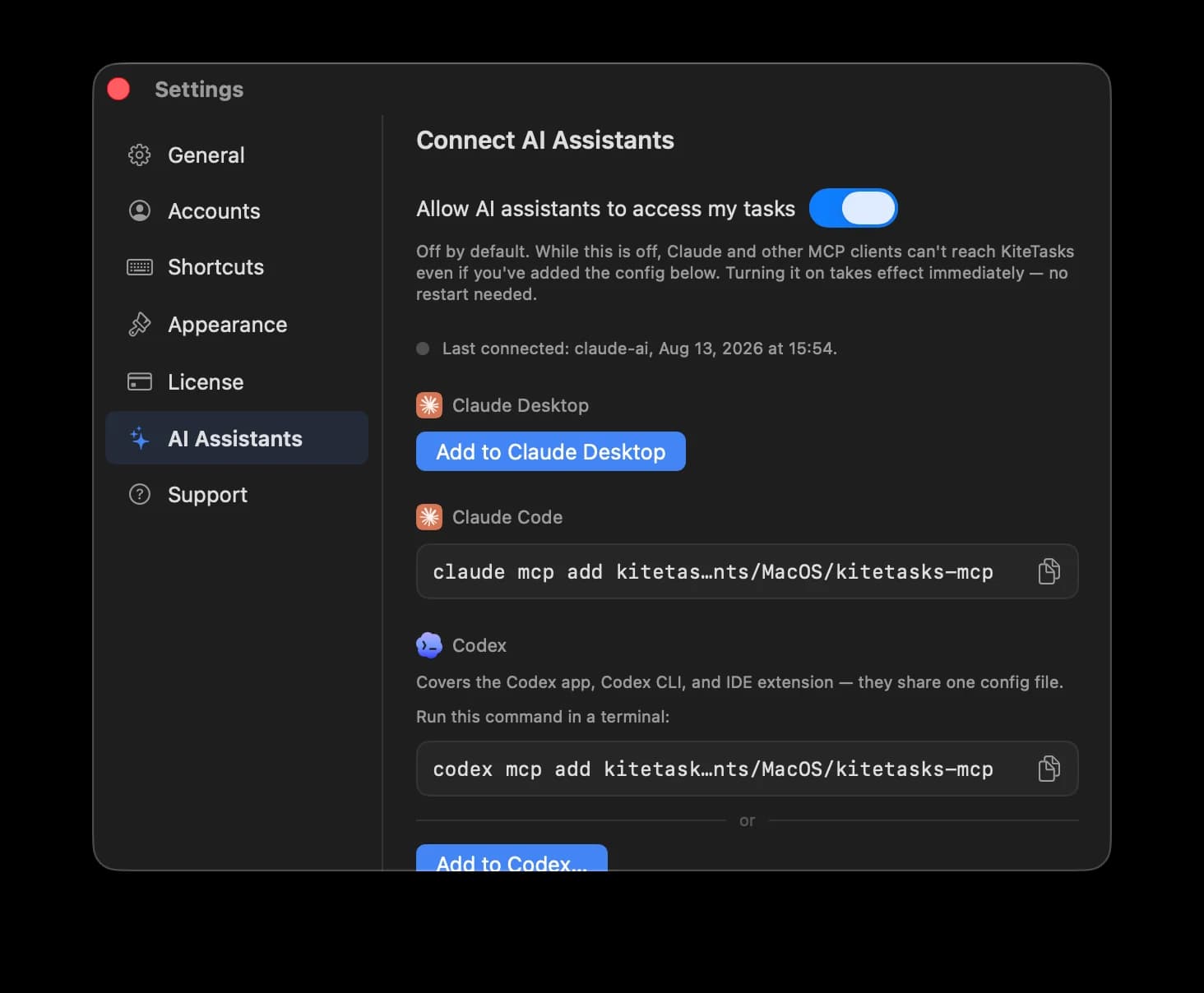
- 1Download KiteTasks from the Mac App Store and sign in with your Google account
- 2Open Settings with Cmd+, and go to AI Assistants
- 3Turn on "Allow AI assistants to access my tasks" — it is off until you enable it
- 4Click "Add to Codex", or copy the one-line codex mcp add command from the same pane and run it in a terminal
- 5Ask Codex about your tasks: "What is due today?" or "Add: review the pull request tomorrow morning"
Once connected, Codex gets the same eleven tools Claude does: list, search, create, update, complete, move, and delete tasks, plus create and rename task lists — across every Google account you have added to KiteTasks. The server runs entirely on your Mac and talks to Google over the official Google Tasks API with the OAuth sign-in you already made in the app. No hosted platform, no standing third-party grant to your Google account, and the whole thing switches off from the same Settings pane.
If the app moves, the connection heals itself
The Codex config points at a helper binary inside the KiteTasks app bundle. If the app gets moved on disk — say from Downloads to Applications — KiteTasks notices and repairs the Codex connection automatically, so the setup is not something you maintain. Updates to the app update the server with it, which is a quiet advantage over self-hosted open-source servers that need a pull and a rebuild.
Once connected
What to ask Codex once it can see your tasks
The connection pays off in delegation, not novelty. These prompts work in the Codex surface of the ChatGPT desktop app and in the Codex CLI alike — copy one and adjust the details to your lists.
Look at my Google Tasks. What is due today, and what order should I tackle it in? Keep the plan under five items.
Here are my notes from standup: [paste them]. Create a task for each item that is mine, with due dates wherever a deadline was mentioned.
Find everything overdue across my lists and move it to tomorrow — except anything that mentions a release. Flag those to me first.
Take the task "Ship the onboarding revamp" and break it into concrete subtasks with rough due dates spread over the next two weeks.
Go through all my lists. Summarize what I completed this week, what is still open, and what looks stale enough to delete.
By hand
One sentence
By hand
Retype each action item from your notes into the app, one by one
One sentence
Paste the notes once; every action item becomes a task with a due date
By hand
Scroll each list hunting for overdue tasks and reschedule them one at a time
One sentence
One sentence sweeps everything overdue to tomorrow
By hand
A Friday review means opening every list and eyeballing what happened
One sentence
Ask for a summary of done, open, and stale — and get it in seconds
Every change Codex makes goes through the official Google Tasks API, so the tasks it creates show up in Google Tasks on the web, in Gmail, and on your phone.
Frequently asked
- Can ChatGPT connect to Google Tasks?
- Yes, on a Mac — through Codex, the agent surface built into the ChatGPT desktop app, which supports local MCP servers and connects to Google Tasks via KiteTasks in one click. ChatGPT's chat connectors are the limited path: they only take a URL to a remote server on the internet, so in chat the sole option is a hosted MCP platform, at the cost of giving that platform standing OAuth access to your Google account.
- Does ChatGPT support local MCP servers?
- In chat, no — custom connectors only speak to remote MCP servers over the internet. But the unified ChatGPT desktop app includes Codex, and Codex does support local stdio servers: the desktop app, the Codex CLI, and the IDE extension share one MCP configuration, which is how KiteTasks connects Google Tasks to the ChatGPT app without any cloud middleman.
- What can Codex do with my Google Tasks?
- Connected through KiteTasks' MCP server, Codex can list, search, create, update, complete, move, and delete tasks, and create and rename task lists — across all the Google accounts added to the app. Changes go through the official Google Tasks API, so they show up in Gmail, Google Calendar, and on your phone like any other edit.
- Is connecting Codex to my tasks private?
- Yes, with a local server. KiteTasks' MCP server runs entirely on your Mac and is off by default: Codex talks to it locally, and it talks to Google directly using the app's own OAuth sign-in. No third-party service sits in the middle and no new party gains access to your Google account — unlike the hosted-connector route ChatGPT requires.
- Which AI assistants can use Google Tasks locally?
- Any MCP client that supports local stdio servers. Today that includes Claude Desktop (one-click setup from KiteTasks), Claude Code, and Codex — as the surface inside the ChatGPT desktop app, as the CLI, and as the IDE extension. The one place local servers cannot reach is ChatGPT's chat connectors, which only accept remote servers.