How to Connect Google Tasks to Claude (MCP)
Arturo7 min read
The short answer
You can connect Google Tasks to Claude, but not through anything Google ships: Google's official MCP servers cover Gmail, Drive, Docs, Sheets, Slides, Calendar, Chat, and Contacts — Google Tasks is not one of them. That leaves two realistic options: run an open-source Google Tasks MCP server, which means creating a Google Cloud project and your own OAuth credentials, or use KiteTasks, a native Mac app with a built-in local MCP server that connects to Claude Desktop in one click. Here is how both work.
Option 1 · Do it yourself
Run an open-source Google Tasks MCP server
Because Google offers no official MCP server for Google Tasks, the do-it-yourself route runs on community projects from GitHub, such as gtasks-mcp. These servers talk to the Google Tasks API directly, which means you have to provide your own API access: you become the developer, with a Google Cloud project and OAuth credentials of your own. Here is the full setup, using gtasks-mcp as the example.
- 1Create a project in the Google Cloud console at console.cloud.google.com
- 2Enable the Google Tasks API for that project
- 3Configure an OAuth consent screen for the project
- 4Add the Google Tasks scope (https://www.googleapis.com/auth/tasks)
- 5Create an OAuth Client ID of type Desktop App and download the JSON key file
- 6Clone the server repository, then rename the key file and place it where the server expects it
- 7Install Node.js if you do not have it, then run npm install and npm run build
- 8Run the server's auth command, which opens a browser window to authorize your Google account and saves a credentials file to disk
- 9Add the server to Claude Desktop by hand-editing claude_desktop_config.json with the command and file paths, then restart Claude Desktop
Budget 30 to 60 minutes if you are comfortable in the Google Cloud console and a terminal, longer if you are not. You also take on the maintenance: the OAuth key and credential files live on your disk and must be kept safe, most community servers handle a single Google account, and updates mean pulling and rebuilding the repository. The typical toolset is six operations — search, list, create, update, delete, and clear. It works, and for developers who want to tinker it is a fine route. It is just a lot of ceremony for a to-do list.
Why is there no official Google Tasks MCP server?
Google publishes MCP servers for Google Workspace, but the supported list is Gmail, Drive, Docs, Sheets, Slides, Calendar, Chat, and the People API — Google Tasks is absent, both from the Workspace MCP documentation and from Google's open-source MCP repository. And even for the products Google does support, setup requires a Google Cloud project, the gcloud command-line tool, and an OAuth consent screen of your own. Until Google adds Tasks, every path to using it with Claude goes through third-party servers.
Option 2 · One click
One click with KiteTasks' built-in MCP server
KiteTasks is a native Google Tasks app for Mac that ships with a local MCP server built in. There is no Cloud project and no credential file to manage, because the server reuses the Google sign-in you already did in the app. It is off by default, and everything runs on your Mac — Claude talks to the local server, and the server talks to Google, with no third-party middleman in between.
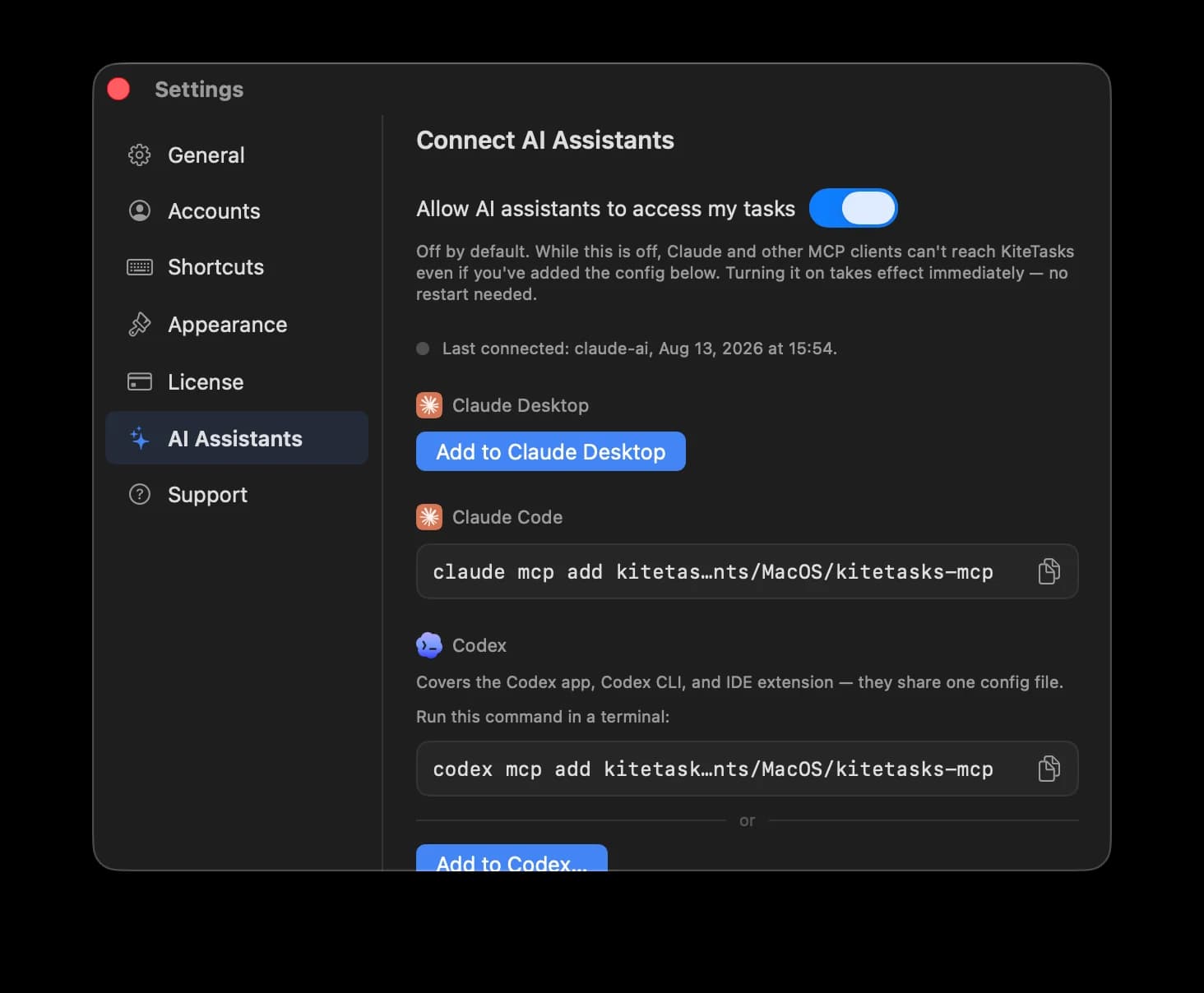
- 1Download KiteTasks from the Mac App Store and sign in with your Google account
- 2Open Settings with Cmd+, and go to AI Assistants
- 3Turn on "Allow AI assistants to access my tasks" — it is off until you enable it
- 4Click "Add to Claude Desktop". Claude Desktop opens its extension install sheet; confirm, and the KiteTasks tools are installed
- 5Open a new Claude chat and try it: "What is due today?" or "Add: send the invoice tomorrow at 9am"
Once connected, Claude gets eleven tools: it can list, search, create, update, complete, move, and delete tasks, and create and rename task lists — across every Google account you have added to KiteTasks, not just one. Due dates, notes, and subtasks all round-trip through the same sync the app itself uses, so anything Claude changes shows up in Google Tasks everywhere.
Connecting Claude Code instead
For Claude Code, the terminal counterpart, the setup is one command: claude mcp add kitetasks -- /Applications/KiteTasks.app/Contents/MacOS/kitetasks-mcp. You do not have to type the path yourself — the AI Assistants pane in KiteTasks Settings shows the exact command with a copy button. The same pane covers Codex — including Codex inside the ChatGPT desktop app — with a one-click connect or an equivalent codex mcp add command, and any other MCP client that supports local stdio servers can point at the same helper. (ChatGPT's chat connectors are the notable exception — they only accept remote servers.)
What people actually use it for
The point of connecting a task list to an assistant is delegation, not novelty. Ask Claude to plan your morning from what is due, turn meeting notes into a task list in one pass, sweep everything overdue to tomorrow, or break a vague project into concrete subtasks — each of those is one sentence in chat instead of a dozen clicks. Because the server is local, all of it works with the privacy model of a desktop app, not a cloud integration.
Once connected
What to ask Claude once it can see your tasks
The setup is the boring half. These are the prompts that earn the connection — copy one into Claude Desktop or Claude Code and adjust the details to your lists.
Look at my Google Tasks. What is due today, and what order should I tackle it in? Keep the plan under five items.
Here are my meeting notes: [paste them]. Create a task for each action item that is mine, with due dates wherever a deadline was mentioned.
Find everything overdue across my lists and move it to tomorrow — except anything that mentions an invoice. Flag those to me first.
Take the task "Launch the newsletter" and break it into concrete subtasks with rough due dates spread over the next two weeks.
Go through all my lists. Summarize what I completed this week, what is still open, and what looks stale enough to delete.
By hand
One sentence
By hand
Retype each action item from your meeting notes into the app, one by one
One sentence
Paste the notes once; every action item becomes a task with a due date
By hand
Scroll each list hunting for overdue tasks and reschedule them one at a time
One sentence
One sentence sweeps everything overdue to tomorrow
By hand
A Friday review means opening every list and eyeballing what happened
One sentence
Ask for a summary of done, open, and stale — and get it in seconds
Every change Claude makes goes through the same sync the app uses, so the tasks it creates show up in Google Tasks on the web, in Gmail, and on your phone.
Frequently asked
- Is there an official Google Tasks MCP server from Google?
- No. Google's official MCP servers for Workspace cover Gmail, Drive, Docs, Sheets, Slides, Calendar, Chat, and the People API, and Google Tasks is not on the list. To connect Google Tasks to Claude you need a third-party server: either an open-source project you configure with your own Google Cloud OAuth credentials, or an app like KiteTasks that ships a local MCP server with no credential setup.
- Is there a Google Tasks connector for Claude?
- Not a built-in one. Claude's first-party Google Workspace connectors cover Gmail, Google Calendar, and Google Drive, and Google Tasks is not among them. To give Claude access to your tasks, you connect a Google Tasks MCP server instead: an open-source server you run with your own Google Cloud credentials, a hosted platform added as a custom connector, or KiteTasks' local server, which installs into Claude Desktop in one click from the app's Settings.
- Can Claude create and complete tasks in Google Tasks?
- Yes. Over MCP, Claude can list, search, create, update, complete, move, and delete Google Tasks, and create and rename task lists. With KiteTasks' built-in server this works across all your Google accounts, and changes sync back to Google Tasks through the official API, so they appear in Gmail, Google Calendar, and on your phone.
- Is my task data sent to a third-party server?
- Not with a local MCP server. KiteTasks' MCP server runs entirely on your Mac: Claude connects to it locally, and it talks to Google over the official Google Tasks API using the OAuth sign-in you already made in the app. The server is also off by default — nothing is exposed until you enable it in Settings, and you can turn it off again at any time.
- Does this work with multiple Google accounts?
- With KiteTasks, yes — the MCP server sees every Google account you have added to the app, so Claude can work across your personal and work task lists in one conversation. Most open-source Google Tasks MCP servers authorize a single account per credentials file, so multi-account setups mean running multiple servers.
- Can I use ChatGPT or Codex with Google Tasks instead of Claude?
- Yes. Codex — built into the ChatGPT desktop app, with a CLI and IDE extension sharing the same configuration — connects in one click from Settings or with a single codex mcp add terminal command, and gets the same tools Claude does. The one limited path is ChatGPT's chat connectors, which only accept remote MCP servers and cannot reach a local server on your Mac. Any other MCP client that supports local stdio servers can point at the same helper.