Google Tasks Keyboard Shortcuts: The Complete List
Arturo4 min read
The short answer
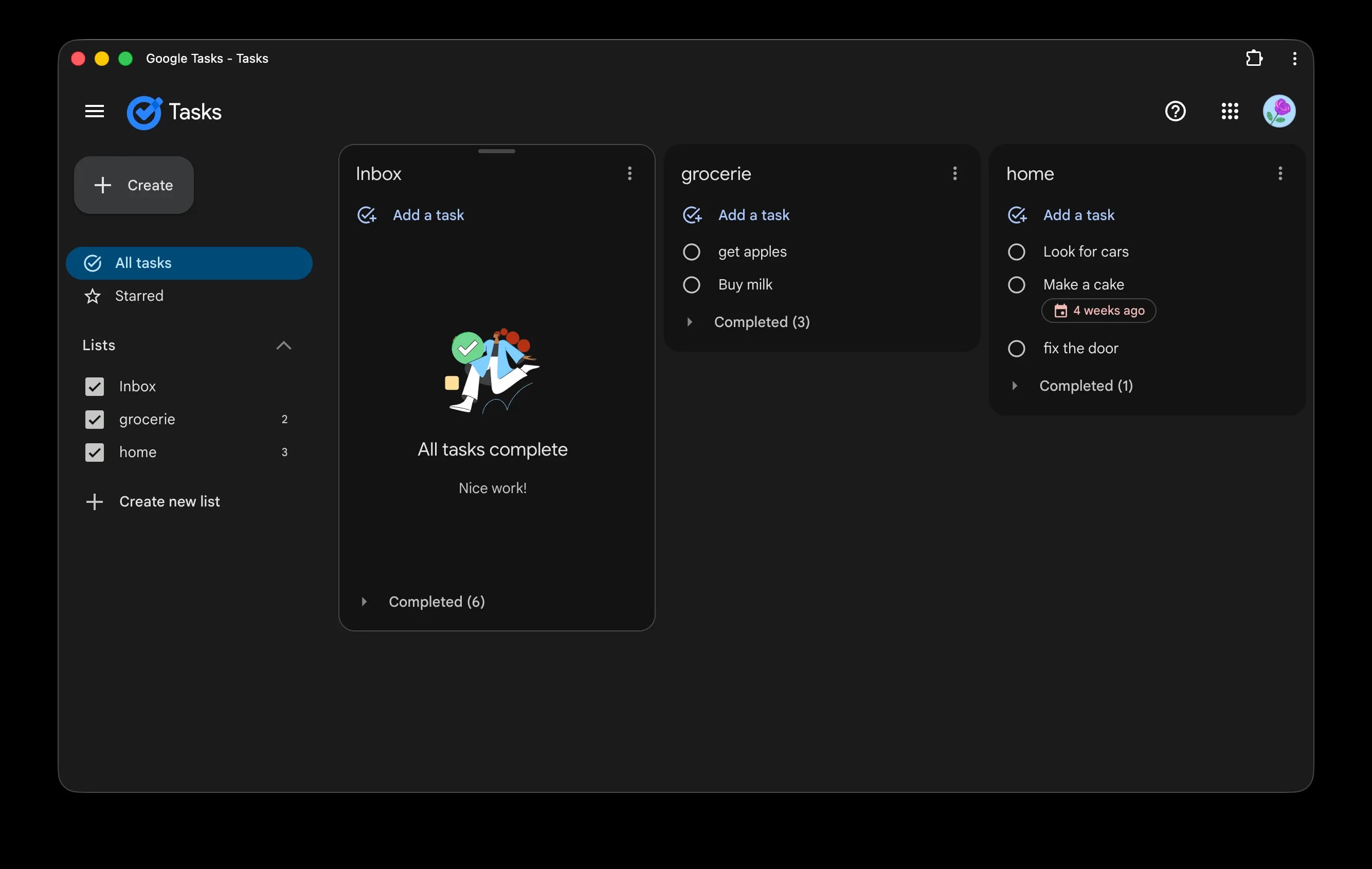
Google Tasks does have keyboard shortcuts, but only on the web, and only while the Tasks tab or side panel has keyboard focus. Press Cmd+/ on Mac or Ctrl+/ on Windows inside Google Tasks to see the official list at any time. The shortcuts cover creating, completing, indenting, starring, and reordering tasks. What they do not cover: anything system-wide, and search, because Google Tasks has no search to bind a key to. Here is the full list, plus the shortcuts a native Mac app can add on top.
On the web
The official Google Tasks keyboard shortcuts
These shortcuts work on tasks.google.com and in the Tasks side panel inside Gmail and Google Calendar. They only fire while the Tasks view has keyboard focus, so click into the task list first. The quickest reference is built in: press Cmd+/ on Mac or Ctrl+/ on Windows and Google Tasks shows the current shortcut list in an overlay.
| Shortcut | What it does |
|---|---|
| Return | Create a new task, or finish editing the current one |
| Space | Mark the selected task complete |
| S | Add or remove the star on the selected task |
| ⌘] Windows: Ctrl + ] | Indent a task, turning it into a subtask |
| ⌘[ Windows: Ctrl + [ | Remove the indent |
| ⌘⌥Return Windows: Ctrl + Alt + Return | Add a subtask under the selected task |
| ⌘↑/⌘↓ Windows: Ctrl + ↑ / Ctrl + ↓ | Move the selected task up or down the list |
| ⌘⇧↑/⌘⇧↓ Windows: Ctrl + Shift + ↑ / Ctrl + Shift + ↓ | Jump the task to the top or bottom |
| ⌘Z Windows: Ctrl + Z | Undo the last action |
| Esc | Stop editing without creating anything |
| ⌘/ Windows: Ctrl + / | Show the full shortcut overlay |
That is a workable list for editing, but notice what is missing. There is no shortcut to jump to a different list, no shortcut for search because the web app has no search feature, and nothing works when the browser tab is not focused. The shortcuts help you edit tasks you are already looking at; they cannot get a task into Google Tasks while you are working somewhere else.
Shortcuts only work while the Tasks view is focused
Browser web apps can only listen for keys inside their own tab. If you are in a document, a code editor, or another tab and a task pops into your head, no Google Tasks shortcut will fire. You have to switch to the Tasks tab or open the side panel first, which in practice is the moment most quick thoughts get lost. This is a limit of the platform, not something Google can patch: system-wide hotkeys require a native app.
In the native app
The shortcuts KiteTasks adds on a Mac
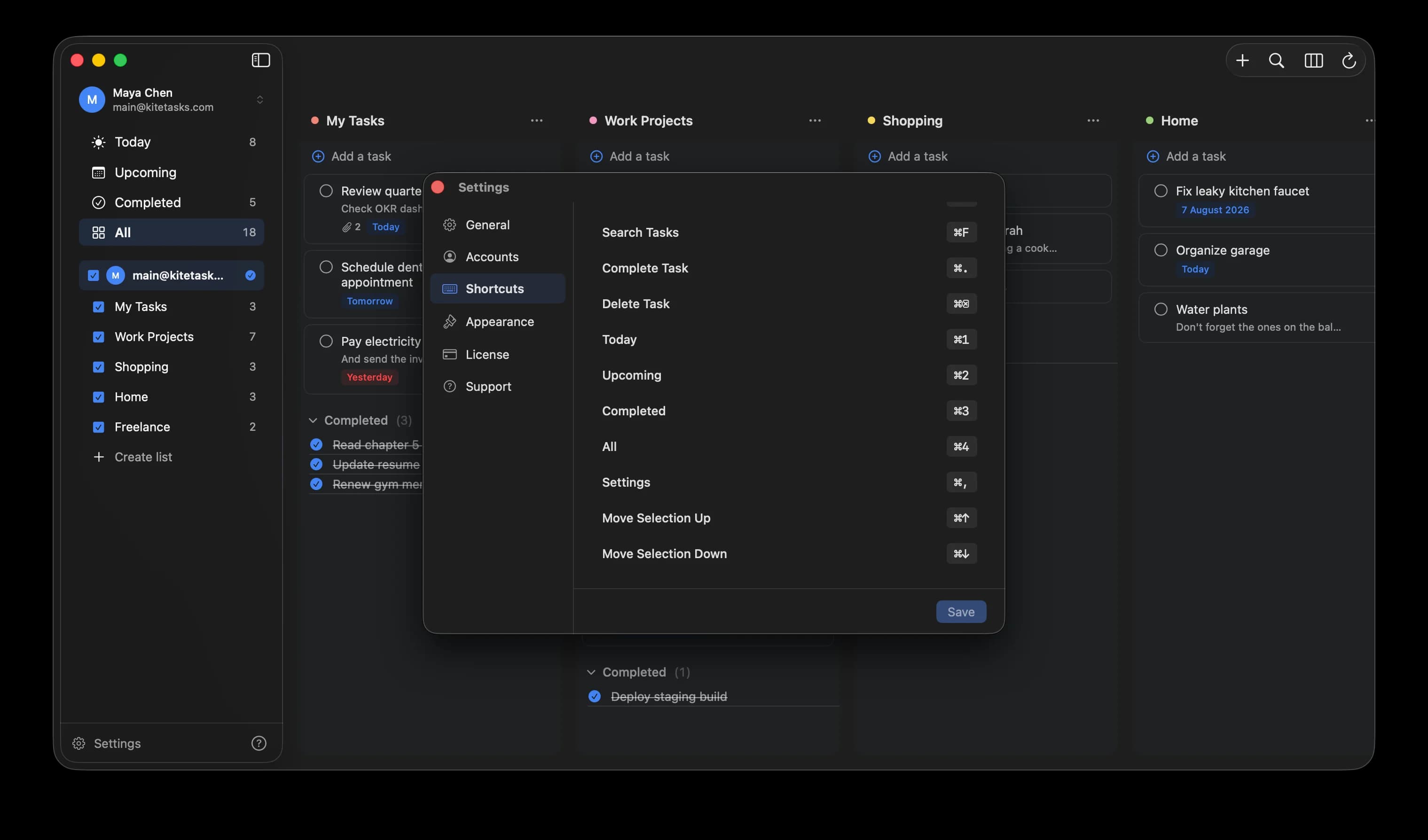
KiteTasks is a native macOS app for Google Tasks, so its shortcuts follow Mac conventions and, crucially, one of them works from anywhere in the system, not just while the app is focused.
| Shortcut | What it does |
|---|---|
| ⌥Space | The global Quick Capture hotkey. Press it from inside any app and a capture window appears; type "call mom tomorrow 3pm" and Enter, and you are back where you were |
| ⌘N | Create a new task |
| ⌘F | Full-text search across every list, including notes, subtasks, and completed tasks |
| ⌘. | Complete the selected task |
| ⌘⌫ | Delete the selected task |
| ⌘1–⌘4 | Jump between the Today, Upcoming, Completed, and All views |
| ⌘↑/⌘↓ | Move the selection up or down the list |
| ⌘, | Open Settings, the standard macOS shortcut |
Two things the web app cannot offer: first, the global hotkey works while you are in another app entirely, which is exactly the gap the browser shortcuts cannot close. Second, every shortcut on this list is remappable — open Settings with Cmd+, and click any shortcut in the Shortcuts tab to record your own, including the global hotkey itself if Option+Space clashes with another tool like Spotlight replacements or Raycast.
Frequently asked
- Does Google Tasks have keyboard shortcuts?
- Yes, on the web. tasks.google.com and the Tasks side panel in Gmail and Google Calendar support shortcuts for creating, completing, starring, indenting, and reordering tasks. Press Cmd+/ on Mac or Ctrl+/ on Windows while Google Tasks is focused to see the current list in an overlay.
- Why are my Google Tasks shortcuts not working?
- Almost always because the Tasks view does not have keyboard focus. Click directly into the task list, then try again. Shortcuts also will not fire from a different browser tab or another application, since web apps can only receive keystrokes inside their own focused tab.
- Is there a shortcut to search Google Tasks?
- No, because Google Tasks has no built-in search feature to bind a key to. The common workaround is the browser's find command (Cmd+F or Ctrl+F) on the All tasks view of tasks.google.com. Native apps can do better: KiteTasks binds Cmd+F to a real full-text search across all lists, notes, and completed tasks.
- Can I add a task to Google Tasks with a shortcut from any app?
- Not with the web app. Browser shortcuts stop working the moment the tab loses focus, so there is no system-wide capture key on tasks.google.com. That requires a native app: KiteTasks has a global Quick Capture shortcut you can press from inside any application on your Mac, with natural-language dates like "submit report next Friday".